How to Clear DNS Cache on Windows, macOS, Chrome, Android, and iPhone

Clearing the DNS cache can help when your device keeps using an old or incorrect DNS result after a domain, server, or DNS record has changed.
For example, suppose a website previously pointed to:
192.0.2.10
and now points to:
198.51.100.20
Your DNS provider may already return the new address, but your computer, browser, router, or recursive DNS resolver may still have the older result cached.
In this situation, clearing the local DNS cache can remove one layer of stale data.
However, DNS caching occurs at several levels, so flushing your device does not guarantee that every resolver on the internet will immediately return the new record.
What Is DNS Cache?
A DNS cache is temporary storage containing recently resolved DNS records.
Instead of performing a complete DNS lookup every time you open the same website, a device or resolver can reuse a cached answer.
For example:
example.com → 192.0.2.10
may be stored locally for a period defined by the DNS record's TTL.
When the browser requests example.com again, the operating system may use the cached address instead of contacting a recursive resolver immediately.
Why Does DNS Use Caching?
DNS caching improves performance and reduces unnecessary network queries.
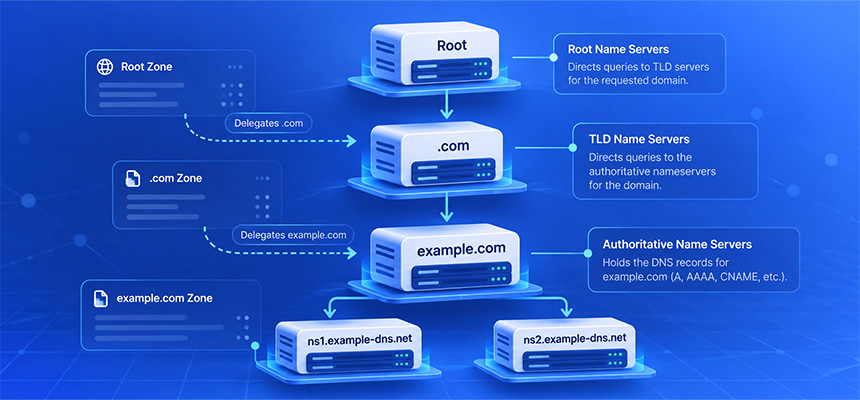
Without caching, every request could require multiple DNS lookups involving:
- Recursive resolvers
- Root nameservers
- Top-level domain nameservers
- Authoritative nameservers
Caching helps reduce latency and load across the DNS infrastructure.
What Is DNS TTL?
TTL stands for:
Time To Live
A DNS record's TTL tells resolvers approximately how long they may cache that answer.
For example:
example.com. 300 IN A 192.0.2.10
means the A record has a TTL of:
300 seconds
or five minutes.
What Happens When a DNS Record Changes?
Suppose the record changes from:
example.com → 192.0.2.10
to:
example.com → 198.51.100.20
The authoritative nameserver may begin serving the new value immediately.
However, resolvers that cached the old address can continue using it until the cached entry expires.
This is why different users can temporarily see different DNS results.
What Does “Clear DNS Cache” Mean?
Clearing the DNS cache removes locally stored DNS results so the system is forced to request fresh information.
On a computer, this may clear the operating system's resolver cache.
Browsers can also maintain their own DNS or connection state.
Routers, ISPs, and public DNS resolvers may have separate caches that your local command cannot clear.
When Should You Clear DNS Cache?
DNS flushing is useful in situations such as:
- A website moved to a new server.
- An A or AAAA record changed.
- Nameservers changed.
- A domain was restored after an outage.
- You recently changed DNS providers.
- Your device resolves a domain differently from other devices.
- A DNS error was fixed but your computer still shows the old result.
When Clearing DNS Cache Will Not Help
Flushing local DNS does not fix every DNS problem.
It will not repair:
- Incorrect authoritative DNS records
- Broken nameserver delegation
- DNSSEC validation failures
- An ISP resolver still serving cached data
- A server that is offline
- A firewall problem
- An invalid SSL certificate
If the DNS configuration itself is wrong, clearing the cache simply causes the device to retrieve the same incorrect answer again.
How to Clear DNS Cache on Windows
Windows includes a built-in command for flushing the DNS resolver cache.
Step 1: Open Command Prompt
Open the Start menu and search for:
Command Prompt
For some system configurations, running the terminal with administrator privileges may be appropriate.
Step 2: Run ipconfig /flushdns
Enter:
ipconfig /flushdns
Press Enter.
Windows should report that the DNS resolver cache was successfully flushed.
Windows DNS Flush Command
ipconfig /flushdns
This is the most common Windows command used when troubleshooting stale local DNS data.
How to View the Windows DNS Cache
Depending on the Windows version and system configuration, you can inspect cached DNS information using commands such as:
ipconfig /displaydns
This can help determine whether a hostname is still present in the local resolver cache.
Should You Restart Windows After Flushing DNS?
Normally, no.
The flush command is intended to clear the resolver cache without requiring a full reboot.
However, an application may still hold its own DNS or connection state.
If one application continues showing old behavior, close and reopen that application.
How to Clear DNS Cache on macOS
macOS uses system DNS caching services, and the exact command can vary between operating system versions.
On many modern macOS versions, a commonly used command is:
sudo dscacheutil -flushcache; sudo killall -HUP mDNSResponder
Run it from Terminal.
Step 1: Open Terminal
You can find Terminal through:
Applications
→ Utilities
→ Terminal
Step 2: Run the cache flush command
sudo dscacheutil -flushcache; sudo killall -HUP mDNSResponder
You may be asked to enter your macOS account password.
The command may complete without displaying a detailed success message.
Why macOS DNS Commands Differ Between Versions
Apple has changed DNS and caching components across macOS releases.
This is why older tutorials may show commands that no longer apply to current systems.
If a particular command fails, check the documentation appropriate to the installed macOS version rather than repeatedly using an obsolete command.
Should You Restart the Browser After Clearing macOS DNS?
It is often useful.
The operating system cache and browser state are separate layers.
After flushing system DNS, restart the browser if it still appears to connect to the old destination.
How to Clear DNS Cache in Google Chrome
Chrome can maintain network-related state separately from the operating system.
In some Chrome versions, internal diagnostic pages can provide DNS or socket controls.
However, Chrome's internal pages and available buttons can change between releases.
A simple first step is:
- Close all Chrome windows.
- Reopen Chrome.
- Retry the website.
If the problem continues, clear the operating system DNS cache as well.
Why Restarting Chrome Can Help
Browsers maintain:
- Connection pools
- DNS-related state
- HTTP caches
- TLS sessions
A browser may therefore continue using an existing connection even after the operating system DNS cache has been cleared.
Restarting it forces more network state to be rebuilt.
DNS Cache vs Browser Cache
These are different.
DNS cache
Stores hostname resolution information:
example.com → 192.0.2.10
Browser cache
Stores web resources such as:
- HTML
- Images
- CSS
- JavaScript
Clearing browser cache does not necessarily clear the operating system DNS cache.
Why a Website Can Still Look Old After DNS Is Correct
Suppose DNS already points to the new server.
You may still see old content because of:
- Browser cache
- CDN cache
- Reverse proxy cache
- Application cache
This is not a DNS problem.
How to Clear DNS Cache on Android
Android DNS behavior depends on the Android version, manufacturer, browser, Private DNS configuration, and network connection.
There is no single universal user-facing command equivalent to:
ipconfig /flushdns
for all Android devices.
Useful troubleshooting steps include:
- Turn Airplane Mode on briefly, then turn it off.
- Disconnect and reconnect Wi-Fi.
- Restart the browser.
- Restart the device if needed.
- Check Private DNS settings.
Why Airplane Mode Can Refresh DNS State
Turning Airplane Mode on and off causes the device to rebuild its mobile and Wi-Fi network connections.
This can result in fresh resolver configuration and new network sessions.
It is not exactly the same as a traditional desktop DNS flush command, but it can help with stale network state.
Android Private DNS
Android supports Private DNS using encrypted DNS transport when configured.
A user may choose:
- Automatic
- Off
- A custom Private DNS provider
If your Android device resolves a domain differently from other devices, check whether a custom Private DNS provider is being used.
How to Clear DNS Cache on iPhone and iPad
iOS and iPadOS do not expose a standard terminal command for ordinary users to manually flush DNS.
Useful methods include:
- Enable Airplane Mode briefly and disable it again.
- Disconnect and reconnect Wi-Fi.
- Close and reopen the browser.
- Restart the device if the issue persists.
Why Restarting an iPhone Can Help
A restart clears a wide range of temporary device and network state.
If the problem exists only on one iPhone while other devices resolve the domain correctly, restarting is a reasonable troubleshooting step.
Should You Reset Network Settings on iPhone?
Resetting network settings is a much more disruptive step and should not usually be the first response to a DNS cache issue.
It can remove saved network configuration such as Wi-Fi settings.
Try simpler steps first:
- Airplane Mode
- Reconnect Wi-Fi
- Restart browser
- Restart device
How to Clear DNS Cache on Linux
Linux does not have one universal DNS caching system.
The correct method depends on which resolver or caching service is installed.
Common possibilities include:
- systemd-resolved
- dnsmasq
- nscd
- NetworkManager
systemd-resolved DNS Cache
On systems using systemd-resolved, a common command is:
sudo resolvectl flush-caches
Some older environments may use:
sudo systemd-resolve --flush-caches
Availability depends on the Linux distribution and version.
dnsmasq Cache
If a system uses dnsmasq for local DNS caching, restarting or reloading the service may clear cached entries.
The exact command depends on how the distribution manages services.
Before restarting anything on a production server, confirm which DNS service is actually in use.
nscd Cache
Some Linux environments use Name Service Cache Daemon.
A system administrator may need to invalidate or restart the appropriate cache service.
Do not assume nscd is installed simply because an older tutorial mentions it.
How to Find Which DNS Resolver Your Device Uses
Your device may use DNS provided by:
- Your router
- Your ISP
- A public DNS service
- Corporate network infrastructure
- VPN software
- Encrypted DNS configuration
Knowing which resolver is in use helps explain why two devices can return different answers.
Why Clearing Local DNS Cache May Not Change the Result
Your computer might clear its cache successfully but then ask the same recursive resolver for the answer.
If that resolver still has:
example.com → 192.0.2.10
cached, your computer receives the old value again.
The local cache was cleared correctly. The stale data exists upstream.
Layers of DNS Caching
A DNS query can encounter several caching layers:
Browser
   ↓
Operating System
   ↓
Router
   ↓
Recursive DNS Resolver
   ↓
Authoritative DNS
A cached result can exist at more than one level.
Browser DNS Cache
The browser may temporarily retain network and DNS information.
Operating System DNS Cache
Windows, macOS, and some Linux configurations maintain system-level DNS state.
Router DNS Cache
Home and office routers may act as DNS forwarders and can cache responses.
Recursive Resolver Cache
Your ISP or public DNS provider may cache authoritative answers according to their TTL.
Authoritative DNS
The authoritative nameserver provides the source DNS record.
If this layer is wrong, clearing caches elsewhere cannot fix the record.
How to Tell Whether the Authoritative DNS Is Correct
Use a DNS Lookup tool to inspect the current record.
For example, if the intended address is:
198.51.100.20
verify that the authoritative DNS actually returns:
example.com. IN A 198.51.100.20
If the authoritative result still shows the old address, update the DNS configuration first.
Why DNS Propagation Check Is Useful
A propagation check compares DNS responses from multiple resolvers or locations.
For example:
Resolver A:
198.51.100.20

Resolver B:
192.0.2.10

Resolver C:
198.51.100.20
This indicates that the change is visible to some resolvers while another may still have the old answer cached.
Does DNS Really “Propagate”?
The term DNS propagation is commonly used, but DNS changes are not pushed to every resolver in the world simultaneously.
Instead, cached records expire based on TTL and are refreshed when resolvers make new queries.
What users call propagation is often the gradual disappearance of previously cached data.
Why Lowering TTL Before a Migration Helps
Suppose the current TTL is:
86400 seconds
or 24 hours.
If you change the server address, some resolvers may legally retain the old answer for up to the remaining cache time.
Before a planned migration, administrators sometimes lower the TTL in advance.
For example:
Old TTL:
86400

Temporary migration TTL:
300
This can reduce how long old records remain cached after the later change.
Why Lowering TTL at the Same Time as the DNS Change May Not Help
If a resolver already cached:
TTL = 86400
changing the authoritative record to:
TTL = 300
does not retroactively shorten that existing cached entry.
The resolver can continue using the previous record until its original cache timer expires.
This is why TTL reduction should be done before a planned migration.
What Is Negative DNS Caching?
DNS can also cache negative answers.
For example, if a hostname does not exist:
api.example.com → NXDOMAIN
that negative response may be cached for a period.
If you create the hostname immediately afterward, some resolvers may continue returning NXDOMAIN until their negative cache expires.
Why a Newly Created Subdomain May Not Work Immediately
If users recently queried the hostname before it existed, their resolver may have cached a negative response.
For example:
Earlier:
new.example.com → NXDOMAIN

Now:
new.example.com → 192.0.2.30
Some users may still temporarily receive NXDOMAIN.
What Is NXDOMAIN?
NXDOMAIN means the DNS system reports that the queried name does not exist.
It is different from:
SERVFAIL
which indicates that DNS resolution could not successfully complete.
Does Clearing DNS Cache Fix NXDOMAIN?
It may help if the NXDOMAIN response is cached locally and the hostname now exists.
However, if the authoritative nameserver still returns NXDOMAIN, the problem is not local caching.
What Is SERVFAIL?
SERVFAIL means the resolver encountered a failure while attempting to answer the query.
Possible causes include:
- Broken DNSSEC
- Nameserver timeout
- Lame delegation
- Authoritative DNS failure
Clearing local DNS cache does not repair those underlying problems.
DNS Cache and DNSSEC
DNSSEC validation results can also be cached.
If a DNSSEC configuration was broken and then corrected, some resolvers may continue returning earlier validation failures for a period.
Use DNSSEC-aware diagnostics when SERVFAIL appears after DS or DNSKEY changes.
DNS Cache and Nameserver Changes
Changing authoritative nameservers involves cached NS records as well as normal resource records.
During a migration:
Resolver A → old nameservers
Resolver B → new nameservers
This is why keeping the old DNS provider active during the transition is often useful.
Clearing Local Cache Does Not Clear Nameserver Caches Worldwide
This is an important distinction.
Running:
ipconfig /flushdns
only affects the local Windows resolver cache.
It does not clear:
- Your ISP's recursive resolver
- Public DNS resolver caches
- Other users' computers
- DNS provider caches
Can You Force DNS Propagation?
No universal command can force every DNS resolver to discard valid cached records immediately.
Resolvers generally follow TTL and their own operational policies.
The best approach is:
- Configure DNS correctly.
- Plan TTL values before migrations.
- Monitor multiple resolvers.
- Wait for cached records to expire where necessary.
Should You Restart Your Router?
If the problem appears on every device connected to one local network but disappears on mobile data or another network, the router or upstream resolver may be involved.
Restarting the router can sometimes clear local forwarding state.
However, it cannot clear your ISP's recursive DNS cache.
How to Tell Whether the Router Is the Problem
Compare results using:
- Home Wi-Fi
- Mobile data
- Another network
If:
Wi-Fi → old server
Mobile → new server
the difference may come from the DNS resolver or cache used by each network.
How VPNs Affect DNS Cache
A VPN can change which DNS resolver your device uses.
For example:
Without VPN:
ISP DNS

With VPN:
VPN provider DNS
Turning the VPN on or off can therefore produce different DNS results.
Why DNS Works With VPN but Not Without It
Possible reasons include:
- The VPN uses a different recursive resolver.
- Your ISP resolver has stale data.
- Your ISP network has a DNS filtering issue.
- The VPN changes IPv4 or IPv6 routing.
Comparing both states can be useful for troubleshooting.
Encrypted DNS and Caching
Modern devices and browsers may use encrypted DNS technologies such as:
- DNS over HTTPS
- DNS over TLS
This can cause a browser or device to use a different resolver than the one configured on the local router.
When troubleshooting inconsistent results, determine which resolver is actually being used.
Chrome Secure DNS
Chrome may support Secure DNS depending on platform, version, and user settings.
If enabled, browser DNS behavior may differ from another application using the operating system resolver.
This can explain situations where:
Browser A → new IP
Browser B → old IP
Firefox DNS over HTTPS
Firefox can also use DNS over HTTPS in supported configurations.
If Firefox returns a different result from system tools, check whether it is using its own encrypted DNS resolver.
Why nslookup and the Browser Can Show Different Results
A command-line DNS tool and a browser may not use exactly the same resolution path.
Differences can involve:
- Browser Secure DNS
- Operating system cache
- Existing browser connections
- IPv4 vs IPv6 preference
Do not assume one result automatically proves the other application is wrong.
Why IPv4 and IPv6 Can Make DNS Troubleshooting Confusing
A hostname can have both:
A → IPv4
AAAA → IPv6
Suppose:
A:
198.51.100.20

AAAA:
2001:db8::10
If the IPv6 record still points to the old server, a device that prefers IPv6 may continue reaching the old environment even though the IPv4 A record was updated.
Clearing DNS Cache Will Not Fix an Old AAAA Record
If authoritative DNS still publishes the wrong IPv6 address, flushing the cache simply retrieves that incorrect AAAA record again.
Check both A and AAAA records during migrations.
DNS Cache vs CDN Cache
These are completely different systems.
DNS cache
Stores information about where a hostname points.
CDN cache
Stores copies of website content.
A domain may resolve to the correct new CDN address but still show old HTML because the CDN cache has not been refreshed.
DNS Cache vs SSL Session Cache
TLS systems can reuse session information for performance.
This is independent from DNS caching.
If an HTTPS error continues after DNS is fixed, inspect the certificate and TLS endpoint separately.
DNS Cache vs HSTS
HSTS tells a browser to use HTTPS.
It does not determine which IP address DNS returns.
Clearing DNS cache will not remove an HSTS policy.
DNS Cache vs Hosts File
Operating systems can contain a local hosts file that overrides normal DNS resolution.
For example:
192.0.2.10 example.com
If this entry exists, clearing the DNS cache may not help because the system continues using the hosts file mapping.
When to Check the Hosts File
Check it when:
- Only one computer resolves the domain incorrectly.
- DNS tools show the correct public address.
- The same incorrect address returns even after repeated flushing.
- The computer was previously used for development testing.
DNS Cache and Local Development
Developers often map domains to local addresses:
127.0.0.1 app.example.test
or manually point production-like hostnames to staging servers.
Forgotten hosts-file entries can later look like mysterious DNS cache problems.
How to Troubleshoot Stale DNS Step by Step
Step 1: Check the authoritative record
Confirm the DNS provider has the intended value.
Step 2: Run a public DNS lookup
Check A, AAAA, CNAME, or other relevant records.
Step 3: Compare multiple resolvers
Use a propagation check to identify inconsistent cached responses.
Step 4: Clear the local DNS cache
Use the correct process for the operating system.
Step 5: Restart the browser
Eliminate browser-level connection state.
Step 6: Check IPv4 and IPv6
Verify A and AAAA records separately.
Step 7: Check the hosts file
Look for manual overrides.
Step 8: Test another network
Compare Wi-Fi with mobile or another ISP.
Step 9: Check VPN and encrypted DNS
Determine whether another resolver is being used.
Step 10: Move beyond DNS if necessary
If the correct IP is already being reached, investigate HTTP, TLS, CDN, or application caching instead.
Example: Website Migration
Old server:
192.0.2.10
New server:
198.51.100.20
Authoritative DNS:
example.com → 198.51.100.20
Laptop still shows:
192.0.2.10
After:
ipconfig /flushdns
the laptop performs a new lookup and receives the current address.
Example: ISP DNS Still Cached
Your local cache is cleared.
However:
ISP resolver:
192.0.2.10

Public resolver:
198.51.100.20
Flushing the computer cannot remove the ISP resolver's cached entry.
You need to wait for it to expire or temporarily use another resolver when appropriate.
Example: Old IPv6 Record
DNS:
A:
198.51.100.20

AAAA:
2001:db8::10
Desktop prefers IPv6 and still reaches the old server.
Repeated DNS flushing does not help.
The real problem is the stale authoritative AAAA record.
Example: Browser Shows Old Site but DNS Is Correct
DNS returns:
198.51.100.20
but the browser displays old content.
Possible cause:
Browser or CDN content cache
This is no longer a DNS troubleshooting problem.
Example: New Subdomain Returns NXDOMAIN
Earlier:
api-new.example.com → NXDOMAIN
Now:
api-new.example.com → 198.51.100.30
A resolver that cached the previous negative response may continue returning NXDOMAIN temporarily.
This is negative DNS caching.
Example: Nameserver Migration
Old delegation:
ns1.old-dns.net
ns2.old-dns.net
New delegation:
ns1.new-dns.net
ns2.new-dns.net
Some recursive resolvers may continue contacting the old nameservers until cached delegation information expires.
Keep both DNS zones operational during the transition when possible.
Should You Change DNS Resolver to Fix Cache Problems?
Changing to another resolver can help determine whether your current resolver has stale data.
However, switching DNS providers is not the same as fixing the authoritative record.
Use it as a diagnostic step, not as a substitute for correct DNS configuration.
Should You Use Public DNS Resolvers?
Public DNS services can provide an alternative to an ISP resolver.
The choice involves considerations such as:
- Performance
- Privacy
- Filtering
- Reliability
- Network policy
There is no need to switch permanently just because one temporary DNS issue occurred.
How DomainScan Can Help
Clear DNS Cache
Use the DomainScan Clear DNS Cache guide to find platform-specific DNS cache clearing instructions.
DNS Lookup
Use DNS Lookup to verify the currently published records.
Important records may include:
A
AAAA
CNAME
NS
MX
TXT
DNS Propagation Check
Use DNS Propagation Check to compare responses across different recursive resolvers.
DNS Delegation Check
Use DNS Delegation Check if the problem involves authoritative nameservers or a recent DNS provider migration.
SSL Checker
Once DNS points to the correct server, use SSL Checker if HTTPS still fails.
A Practical DNS Cache Troubleshooting Checklist
- Confirm the intended DNS record.
- Check the authoritative result.
- Check A records.
- Check AAAA records.
- Check CNAME records where relevant.
- Compare multiple resolvers.
- Clear the operating system DNS cache.
- Restart the browser.
- Check Secure DNS or Private DNS settings.
- Check VPN configuration.
- Check the local hosts file.
- Test another network.
- Check router behavior.
- Wait for upstream TTL expiration when necessary.
- Investigate application or CDN caching if DNS is already correct.
Frequently Asked Questions
What does clearing DNS cache do?
It removes locally cached hostname resolution results so the device can request fresh DNS information.
How do I clear DNS cache on Windows?
Open Command Prompt and run ipconfig /flushdns.
How do I clear DNS cache on macOS?
On many modern macOS versions, administrators commonly use sudo dscacheutil -flushcache; sudo killall -HUP mDNSResponder. Commands can vary by macOS release.
How do I clear DNS cache on Android?
Android does not provide one universal flush command for ordinary users. Reconnecting the network, toggling Airplane Mode, restarting the browser, or restarting the device can refresh network state.
How do I clear DNS cache on iPhone?
Common troubleshooting steps include toggling Airplane Mode, reconnecting Wi-Fi, restarting the browser, or restarting the device.
Will clearing DNS cache make the internet faster?
Not normally. DNS caching is intended to improve performance. Flushing it is mainly a troubleshooting action.
Is it safe to flush DNS?
Yes, under normal circumstances. The device simply needs to perform fresh DNS lookups afterward.
Why do I still see the old IP after flushing DNS?
Your recursive resolver may still have the old value cached, or another layer such as IPv6, a hosts-file entry, VPN DNS, or browser state may be involved.
Does clearing browser cache clear DNS cache?
Not necessarily. Browser content cache and operating system DNS cache are different systems.
Does restarting the computer clear DNS cache?
It generally clears temporary local resolver state, but it does not affect upstream resolver caches.
Can I force DNS propagation?
No. You cannot universally force every recursive resolver to discard valid cached records before their cache periods expire.
Why does DNS work on mobile data but not Wi-Fi?
The two networks may use different recursive DNS resolvers or different IPv4 and IPv6 paths.
Why does one browser work while another does not?
The browsers may use different DNS settings, encrypted DNS providers, connection pools, or cached network state.
What is negative DNS caching?
It is the caching of negative DNS responses such as NXDOMAIN, which can temporarily make a newly created hostname appear nonexistent.
Final Thoughts
Clearing DNS cache is a useful troubleshooting step when a device continues using stale hostname information after a DNS change.
On Windows, this can be as simple as running ipconfig /flushdns. macOS, Linux, Android, and iOS use different resolver architectures, so the appropriate method depends on the platform.
The most important point is that DNS caching does not exist only on your computer.
Browsers, operating systems, routers, recursive DNS resolvers, and other network components can all retain information temporarily.
If clearing the local cache does not solve the problem, verify the authoritative DNS records, compare different resolvers, check both IPv4 and IPv6, and determine whether a VPN, encrypted DNS service, or hosts-file override is involved.
Use DomainScan DNS Lookup to confirm current records, DNS Propagation Check to compare resolver results, DNS Delegation Check when nameservers have changed, and Clear DNS Cache for platform-specific troubleshooting steps.
DNS flushing is most effective when used as part of a structured diagnosis rather than as a generic fix for every website connectivity problem.